
T-Mobile Home Internet provides internet access through T-Mobile’s cellular network rather than a conventional cable or fiber line. Because no exterior wiring is normally required, most customers can install the service themselves using the supplied gateway and the T-Life app.
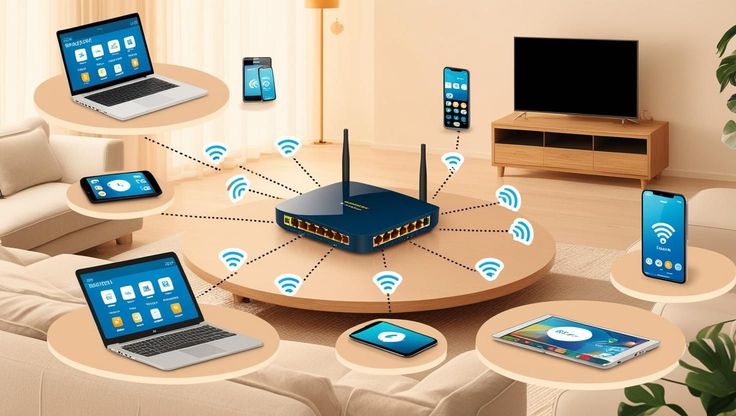
The T-Mobile gateway performs two functions: it connects to the available T-Mobile network and creates a Wi-Fi network for your phones, computers, televisions, and other devices. T-Mobile describes the T-Life app as the easiest way to set up and manage the gateway. The app can also help you check signal strength, change your Wi-Fi details, restart the gateway, and monitor connected devices.
This guide explains how to set up T-Mobile Home Internet, choose the best gateway location, connect your devices, and resolve common installation problems.
What You Need Before Starting
Before beginning the installation, make sure you have your T-Mobile gateway, the supplied power adapter, a smartphone with the T-Life app installed, and access to a working electrical outlet.
You should also have your T-Mobile ID credentials available. T-Mobile allows eligible customers to manage the internet connection without signing in, but using a T-Mobile ID gives you access to additional account and gateway management features.
Do not discard the label or QR code attached to the gateway. It may contain the default Wi-Fi network name, password, and information needed during setup.
Step 1: Unpack and Inspect the Gateway
Remove the gateway and power adapter from the packaging. Check that the equipment is not visibly damaged and confirm that the power adapter fits the gateway correctly.
T-Mobile provides several gateway models, so the appearance of your equipment may differ from pictures shown in online guides. However, the main installation process is generally the same: choose a location, scan the gateway, connect it to power, wait for it to establish a signal, and configure your Wi-Fi network.
Locate the QR code and default network information before placing the gateway. These details are usually printed on a label attached to the device.
Step 2: Install the T-Life App
Download and open the T-Life app on your Android phone or iPhone. From the app’s home screen, use the Internet shortcut or locate the Home Internet section.
Choose the option to link an existing gateway or set up a new one. Sign in with the T-Mobile ID associated with your Home Internet account. When the app asks what you need to do, select the option indicating that you need to set up your gateway.
The app may ask you to choose your gateway model and confirm that you have all the required equipment. The exact wording and screen layout may change slightly depending on the app version and your smartphone. T-Mobile recommends following the prompts displayed on your phone.
Step 3: Choose the Best Gateway Location
Gateway placement is one of the most important parts of the installation. The gateway needs to receive a strong cellular signal while also providing adequate Wi-Fi coverage throughout your home.
Start by placing it near a window and on an elevated surface, such as a shelf, table, or upper-floor windowsill. Keep the gateway in an open area rather than inside a cabinet or behind furniture.
Avoid placing it close to microwave ovens, large metal objects, thick concrete walls, televisions, or other appliances that may interfere with wireless signals. Ideally, the gateway should be near a window but not too far from the rooms where you regularly use Wi-Fi.
The T-Life app includes placement assistance that can help identify a suitable position. T-Mobile recommends using the placement assistant again whenever the gateway is moved.
Do not settle on the first available window without testing alternatives. A window on another side of the house may provide a stronger connection depending on the location of nearby T-Mobile network equipment and the materials used in your building.
Step 4: Scan the Gateway QR Code
When the T-Life app asks you to connect the gateway, select the option to scan its code. Allow the necessary camera and location permissions, and then position the QR code inside the scanning area on your phone.
Use good lighting and hold the phone steady. When the code does not scan immediately, clean the phone’s camera lens and adjust the distance between the phone and the gateway.
Scanning the code links the app to the gateway and allows you to continue with activation and network configuration.
Step 5: Connect the Gateway to Power
Connect the supplied power adapter to the gateway and plug it directly into a working wall outlet. When your gateway model has a physical power button, press it to turn the device on.
Wait while the gateway starts. T-Mobile’s setup instructions advise allowing approximately two minutes for the initial startup, although establishing a network connection may occasionally take longer.
Avoid unplugging, restarting, or moving the gateway during this process. Watch the gateway’s display or indicator lights for information about its startup and connection status.
Step 6: Wait for the Gateway to Connect
Return to the T-Life app and continue through the displayed instructions. The gateway will search for the T-Mobile network and attempt to establish an internet connection.
When prompted, your phone may need to reconnect to the gateway’s Wi-Fi network. Open your phone’s Wi-Fi settings, choose the gateway network, and then return to the T-Life app.
Check the signal information shown on the gateway or in the app. If the signal is weak, move the gateway to another elevated location near a window and give it time to reconnect. Rotating the gateway slightly can sometimes improve reception.
You may need to test several locations before finding the best combination of cellular reception and indoor Wi-Fi coverage.
Step 7: Create Your Wi-Fi Name and Password
The setup process gives you the option to customize your Wi-Fi network name, also called the SSID, and create a new network password.
Choose a recognizable network name, but avoid including private information such as your full name, apartment number, or phone number. Create a strong password using a combination of letters, numbers, and symbols.
You may also use the default Wi-Fi information printed on the gateway label. However, changing the default password is generally a better security practice.
To update these details later, open T-Life, go to My Wi-Fi, select the network under My Networks, enter the new network name or password, and save the changes.
After changing the Wi-Fi name or password, previously connected devices may disconnect. You will need to reconnect them using the updated credentials.
Step 8: Connect Your Devices
Once the gateway is online, open the Wi-Fi settings on your phone, laptop, tablet, smart television, gaming console, or other device.
Turn Wi-Fi on, select the network name you created, and enter the password. When you did not customize the network, use the default name and password shown on the gateway label.
Repeat the process for each device you want to connect. Devices that support wired networking may also be connected to an available Ethernet port on the gateway.
Step 9: Test the Internet Connection
Open a browser and visit several websites to confirm that the connection is working. You should also test applications you regularly use, such as video streaming, video calls, online games, and cloud-based work tools.
Run internet speed tests in different rooms rather than testing only beside the gateway. This will help you distinguish between a weak T-Mobile network signal and limited Wi-Fi coverage inside the home.
A strong connection near the gateway but a poor connection in another room usually indicates a Wi-Fi coverage problem. Poor performance everywhere may indicate weak cellular reception, network congestion, or an unsuitable gateway location.
How to Improve T-Mobile Home Internet Performance
Begin by experimenting with gateway placement. Move it to another window, raise it higher, or place it on a different floor. Each time you relocate it, use the T-Life placement assistant to evaluate the new position.
Keep the gateway uncovered and leave some space around it for ventilation. Avoid placing it on the floor, behind a television, inside a drawer, or close to large appliances.
You can restart an online gateway through the T-Life app when you experience temporary connection problems. The app also lets you review connected devices and network information.
For homes with weak Wi-Fi in distant rooms, a compatible Wi-Fi extender or mesh system may help. T-Mobile states that Wi-Fi 6 mesh products and extenders are compatible with its 5G gateways, although setup and support for third-party equipment may depend on the equipment manufacturer.
Common T-Mobile Home Internet Setup Problems
The Gateway Does Not Turn On
Make sure the power cable is firmly inserted into the gateway and wall outlet. Test the outlet with another device and use only the power adapter supplied for your gateway.
If your gateway has a power button, verify that it has been pressed. Continued failure to power on may indicate faulty equipment or a damaged adapter.
The Gateway Cannot Find a Signal
Move the gateway closer to a window and place it on a higher surface. Test windows on different sides of the building and wait a few minutes after each move.
Large buildings, metal roofing, thick walls, surrounding structures, and local network conditions can affect the signal.
The App Cannot Scan the QR Code
Improve the room lighting, clean your phone’s camera lens, and hold the phone farther from the code. Make sure the entire code is visible inside the scanning frame.
Also confirm that the T-Life app has permission to use your camera.
A Device Cannot Connect to Wi-Fi
Confirm that you selected the correct network and entered the password exactly as created. Wi-Fi passwords are case-sensitive.
Restart the device or remove the saved network from its settings, then reconnect. When several devices cannot connect, restart the gateway and check its connection status in T-Life.
A Smart Device Cannot Find the Network
Some smart cameras, plugs, lights, and household devices only support the 2.4 GHz Wi-Fi band. T-Mobile allows users to create separate 2.4 GHz and 5 GHz networks in the T-Life app, which can help with smart-device compatibility.
Frequently Asked Questions
How long does it take to set up T-Mobile Home Internet?
T-Mobile presents the standard setup as a process that can be completed in about 15 minutes. The total time may be longer when you need to test several gateway locations or connect numerous devices.
Do I need a technician to install T-Mobile Home Internet?
Most customers can complete the setup themselves. The gateway uses T-Mobile’s wireless network, so a conventional cable installation is not normally required. The T-Life app provides guided setup instructions.
Can I set up T-Mobile Home Internet without the T-Life app?
You can connect devices using the default network name and password printed on the gateway label. However, T-Life is recommended for placement assistance, gateway management, network customization, connected-device monitoring, and troubleshooting.
Where is the best place to put the T-Mobile gateway?
Place it near a window, high above the floor, and away from large appliances or metal objects. It should also be reasonably close to the areas where you use Wi-Fi most frequently.
Can I change my T-Mobile Wi-Fi password?
Yes. Open the T-Life app, select My Wi-Fi, choose the network under My Networks, enter the new password, and save the change. You can update the network name through the same menu.
Can I connect devices with an Ethernet cable?
Yes. Compatible computers, switches, routers, and other wired equipment can be connected through an available Ethernet port on the gateway.
Can I use my own router with T-Mobile Home Internet?
A third-party router can be connected to the gateway through Ethernet. Both the gateway and the third-party router may broadcast Wi-Fi unless you disable the gateway’s Wi-Fi network in T-Life. Some advanced networking features may not function in the same way as they do with traditional cable or fiber services.
Does T-Mobile Home Internet support gaming?
Gaming devices can connect through Wi-Fi or Ethernet. However, T-Mobile notes that certain advanced settings used by some gaming systems, including port forwarding, static IP configurations, UPnP, and specific NAT settings, cannot be configured directly on its gateway.
Should the gateway remain turned on all the time?
The gateway is designed to remain powered on so connected devices can access the internet. Restart it when troubleshooting temporary connection issues or when instructed by T-Mobile support.
What should I do if the gateway remains offline?
Check the power connection, restart the gateway, and test another location near a window. Review the troubleshooting options in the T-Life app. If the gateway still cannot establish a connection, contact T-Mobile Home Internet support.
Final Thoughts
Setting up T-Mobile Home Internet is usually straightforward. Install the T-Life app, choose an elevated location near a window, scan the gateway’s QR code, connect it to power, create your Wi-Fi network, and connect your devices.
The most important part of the process is choosing the right gateway location. Testing multiple positions can significantly improve signal quality, Wi-Fi coverage, and the overall reliability of your home internet connection.