

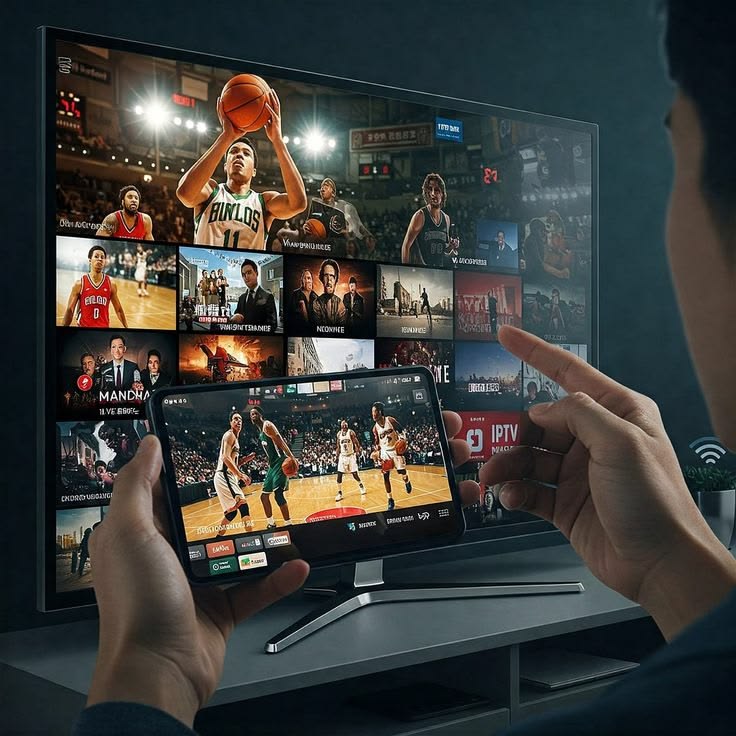
Internet Protocol Television (IPTV) allows users to watch television content through an internet connection instead of relying exclusively on traditional cable or satellite services. With a compatible device, an IPTV player, and a valid subscription, users can access authorised live television streams and other available content.
Setting up Falcon IPTV typically involves installing a compatible player, entering the login details or playlist supplied by the service, and checking that playback works correctly. The exact process depends on which Falcon IPTV service you use, because similarly named services may have different applications and setup instructions.
This guide explains the general setup process for Smart TVs, Amazon Fire TV Stick, Android devices, Apple devices, and computers, along with practical tips for improving streaming quality.
What You Need Before Setup
Before beginning, make sure you have a stable internet connection, a compatible device, an IPTV player, and valid subscription details from your provider. These details usually include an M3U playlist URL or a server URL, username, and password. An electronic programme guide (EPG) URL may also be provided to display programme schedules.
Step-by-Step Setup Instructions
1. Set Up Falcon IPTV on a Smart TV
Open your Samsung, LG, Sony, or Android TV’s official app store and search for a compatible IPTV player. Install the app, open it, and select the option to add a playlist or sign in.
Enter the playlist URL or login credentials supplied by your provider. If the app supports an EPG URL, enter it to enable the electronic TV guide. Save the settings and reload the playlist.
The available apps differ between television brands and operating systems, so check compatibility before installing anything.
2. Set Up Falcon IPTV on Amazon Fire TV Stick
Connect your Fire TV Stick to your television and ensure it has internet access. Open the Amazon Appstore and install a compatible IPTV player.
Launch the app and choose either the M3U playlist option or the Xtream Codes login option, depending on what your provider supplied. Enter the required information, save the playlist, and wait for the channel list to load.
Avoid installing APK files from unknown sources. If an application is unavailable through the official store, verify its authenticity and safety before considering another installation method.
3. Set Up Falcon IPTV on Android Phones and TV Boxes
Open Google Play and search for a compatible IPTV player, such as IPTV Smarters or TiviMate where available. Install the app and launch it.
Choose the appropriate login method. For an Xtream Codes login, enter the server URL, username, and password. For an M3U playlist, paste the playlist link into the relevant field.
After saving the details, allow the playlist to load. Test a few channels to confirm that video and audio work correctly.
4. Set Up Falcon IPTV on iPhone, iPad, or Apple TV
Open the Apple App Store and look for a compatible IPTV player. Once installed, select the option to add a remote playlist or enter your provider’s login details.
Enter the information exactly as supplied and wait for the channel list to appear. If you use Apple TV, make sure the chosen app supports that device rather than assuming an iPhone app will also work on Apple TV.
5. Set Up Falcon IPTV on a Windows PC or Mac
A computer can play an M3U playlist through a compatible media player. For example, with VLC Media Player, open the application and select Media → Open Network Stream on Windows, then paste the playlist URL supplied by your authorised provider.
On a Mac, use the corresponding network-stream option available in your VLC version. Start playback and check that the stream loads correctly. Some services instead require a dedicated application or web player.
How to Improve Streaming Quality
Ethernet is often more reliable than Wi-Fi for televisions and streaming boxes. If using wireless internet, try the 5 GHz band and keep the device near the router.
As a practical starting point, aim for around 10–15 Mbps for one HD stream and 25 Mbps or more for 4K, while allowing extra bandwidth for other household devices. Actual needs vary by stream quality and provider.
Update your IPTV player and device software, close unnecessary background apps, and restart the device periodically to resolve common playback problems.
These steps can reduce buffering and playback interruptions. A stable connection and correct app configuration are particularly important for high-resolution streams.
Common Falcon IPTV Problems and Solutions
|
Problem |
What to try |
|---|---|
|
Login fails |
Recheck the username, password, and server URL, including capitalisation and spaces. |
|
Channels do not load |
Refresh the playlist and confirm that the subscription is active. |
|
Buffering or freezing |
Restart the router, test the connection, and switch to Ethernet if possible. |
|
TV guide is missing |
Check the EPG URL and refresh the programme guide. |
|
App crashes |
Update the app, restart the device, and clear the app cache if the device supports it. |
|
Only one channel fails |
Try other channels; if the problem persists, contact the service provider. |
If these steps do not work, contact the provider through a verified support channel. Do not share your subscription password publicly.
Safety and Legal Considerations
IPTV is a technology for delivering television over internet networks; its legality depends on the content being distributed and whether the provider has the necessary rights. Before paying for a subscription, verify the provider’s identity, licensing claims, refund policy, and terms of service. Prefer legitimate services and official app stores.
Conclusion
Setting up Falcon IPTV generally involves installing a compatible player, entering the correct subscription details, and testing playback on your device. Whether you use a Smart TV, Fire TV Stick, Android device, Apple device, or computer, a reliable internet connection and accurate configuration can help deliver a smoother viewing experience.
Because several services use similar Falcon IPTV names, always follow the instructions for your specific provider rather than assuming that every setup guide applies to every service.
Frequently Asked Questions
1. What do I need to set up Falcon IPTV?
You need a compatible device, a suitable IPTV player, internet access, and valid subscription credentials or a playlist URL from your provider.
2. Can I use Falcon IPTV without a Smart TV?
Yes, if your particular service supports another compatible device, such as a Fire TV Stick, Android TV box, phone, tablet, or computer.
3. What is an M3U URL?
An M3U URL is a playlist link that a compatible media player can use to load available streams. It should be obtained directly from your authorised provider.
4. Why does Falcon IPTV keep buffering?
Buffering can result from a weak internet connection, network congestion, device limitations, or problems with the stream source. Test your internet, restart your equipment, and try a wired connection.
5. Do I need an EPG URL?
No. It is optional for many setups, but it can enable a programme guide showing schedules and programme information.
6. Is Falcon IPTV compatible with every device?
No. Compatibility depends on the specific service, player, device model, and operating system. Confirm support before purchasing a subscription.
7. Is Falcon IPTV free?
Pricing depends on the specific service using that name. Check the provider’s official website for current subscription terms and any trial conditions.
8. What should I do if setup still fails?
Verify your credentials, refresh the playlist, restart your device, and consult the setup guide for your exact service. If the issue continues, contact the provider’s verified support team.